Step-by-step setup
Irish IPTV installation: the guide for every device
This Irish IPTV installation guide covers every device we support on one page. Pick yours from the menu, follow the numbered steps and you’ll be watching in a few minutes. You need the login we send after payment, a device connected to the internet and about ten minutes. If a screen doesn’t match what you see, send us a photo on WhatsApp.
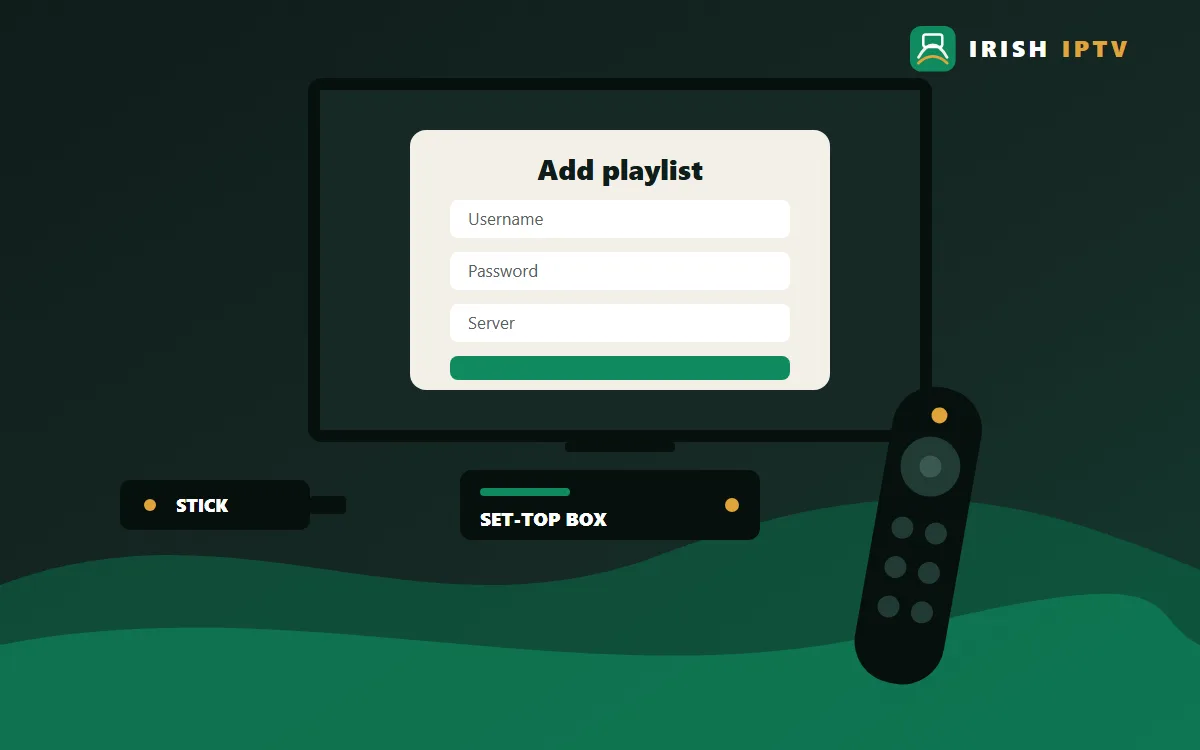
Before you start the Irish IPTV installation
Your login comes in one of three formats, and we send the one that suits your device:
- Xtream Codes: a username, a password and a server address. Most modern player apps use this.
- M3U link: one web address that holds your channel list, used by simpler players and computers.
- Portal URL: used by MAG boxes and some Formuler and BuzzTV setups, linked to the device’s MAC address.
- The device is online, ideally by cable or a strong Wi-Fi signal.
- Its software is up to date.
- You’re signed in to its app store.
- Your login message is open on your phone so you can copy it exactly.
Irish IPTV installation on Fire TV Stick
The Fire TV Stick is the most common way Irish homes add streaming to a TV, and the setup is quick once the player app is on.
- From the Fire TV home screen open Settings, then My Fire TV › About, and run Check for updates.
- Go back to the home screen, choose Find › Search and type the name of the player app we recommend.
- Select Get or Download. If the player isn’t in the Appstore, install Downloader, allow it under Settings › My Fire TV › Developer options › Install unknown apps, then enter the address we send.
- Open the player and choose Add playlist or Add user.
- Pick Xtream Codes and enter the username, password and server address from your login message, or choose M3U and paste the link.
- Wait while the channel folders, guide and films library load, then press OK on a channel to test it.
Tip: If the router is in another room, the Ethernet adapter for Fire TV is the single best fix for evening buffering.
Irish IPTV installation on Samsung / LG Smart TV
Samsung (Tizen) and LG (webOS) televisions run the player directly, so there’s no extra stick to buy. Older models carry fewer apps.
- Press Home on the remote and open the TV’s app store: Apps on Samsung, LG Content Store on LG.
- Search for the player app we name for your TV brand and install it.
- Open the player. If it shows a MAC address or device key, send us a photo of that screen on WhatsApp.
- If it asks for a login instead, enter the username, password and server address, or paste the M3U link.
- Close the app fully and reopen it so the complete channel list and guide download.
- In the player settings, set the time zone to Dublin, then add your favourite channels.
Tip: A cable to the TV’s LAN port beats the built-in Wi-Fi on most sets, especially for 4K.
Irish IPTV installation on Android TV & boxes
This covers Android TV boxes, Google TV and Android TV televisions, plus Android phones and tablets. Some players publish separate TV and phone editions.
- Open Google Play on the box, TV or phone and search for the player we recommend.
- Install it and open it, allowing only the permissions it genuinely needs.
- Choose Add playlist, Add user or Xtream Codes login, depending on the app.
- Enter your username, password and server address, or paste the M3U link; copying from WhatsApp avoids typos.
- Save and wait for the folders, guide and library to load.
- Set the guide to Irish time in the app settings and mark your favourites.
Tip: Clear the player’s cache under Settings › Apps every few weeks to keep it quick.
Irish IPTV installation on iPhone, iPad & Apple TV
Apple devices use players from the App Store. Some are free with optional extras; any in-app fee goes to the app maker, not to us.
- Open the App Store on your iPhone, iPad or Apple TV and search for the player we recommend.
- Tap Get to install it, then open the app.
- Choose to add a playlist or account and select Xtream Codes or M3U.
- Enter your login. On Apple TV, accept the keyboard prompt on your iPhone so you can paste instead of typing.
- Let the channels and guide load, then set the time zone to Dublin.
- On iPhone, use the AirPlay icon to send a channel to an Apple TV or AirPlay-ready television.
Tip: On Apple TV, turn on Match Frame Rate and Match Dynamic Range under Video and Audio for smoother sport.
Irish IPTV installation on Windows & Mac
A laptop or desktop is a handy second screen, and a good back-up when the TV device is acting up.
- Download the free VLC media player from videolan.org, or the desktop player we recommend, and install it.
- In VLC on Windows choose Media › Open Network Stream; on a Mac choose File › Open Network.
- Paste your M3U link and press Play, then open the playlist view to browse the folders.
- For a full programme guide, use the desktop player instead and add your username, password and server address.
- To watch on the TV, connect an HDMI cable; on Windows press the Windows key and P, then choose Duplicate.
Tip: Keep the laptop on mains power and turn off sleep so the screen doesn’t dim mid-match.
Irish IPTV installation on MAG box
MAG boxes have no app store and no login form. Your line is linked to the box’s MAC address and you enter one portal URL.
- Find the MAC address on the label under the box (it begins 00:1A:79) and send a photo of it on WhatsApp with your order number.
- Wait for our confirmation that the MAC address is registered.
- Turn the box on and press SET on the remote when the portal screen appears.
- Go to System settings › Servers › Portals and type Irish IPTV as the Portal 1 name.
- Enter the portal URL exactly as we sent it in the Portal 1 URL field and press OK.
- Choose Restart portal; the box reloads straight into the channel menu.
Tip: MAG boxes behave best on a cable; powerline adapters are a neat alternative to a long lead.
Irish IPTV installation on Formuler
Formuler Z-series boxes such as the Z11 Pro combine Android TV with the MYTVOnline app, which accepts portal and Xtream Codes connections.
- Open MYTVOnline from the Formuler home screen and note the MAC address it shows.
- For a portal connection, send that MAC address and your order number on WhatsApp.
- Select Add Portal (or Add Connection) in MYTVOnline.
- Enter a nickname such as Irish IPTV and the portal URL we send, or choose Xtream Codes and enter your login.
- Select Connect and let the app download the folders and guide.
Tip: Hide folders you never open in MYTVOnline to make channel-hopping much faster.
Irish IPTV installation on Nvidia Shield
The Shield TV and Shield TV Pro are powerful Android TV players that handle long channel lists and 4K streams without fuss.
- Open Google Play on the Shield and install the player we recommend.
- Open it and add a user or playlist with your login or M3U link.
- Wait for the folders and guide, then set the guide to Irish time.
- In Settings › Device Preferences › Display & Sound, try AI-enhanced upscaling for HD channels on a 4K TV.
- Turn on frame-rate matching in the advanced display settings for smoother sport.
Tip: Use the Shield’s gigabit Ethernet port whenever the router is within reach.
Irish IPTV installation on BuzzTV
BuzzTV boxes come with their own player already installed, which accepts Xtream Codes, M3U and portal connections.
- Open the preinstalled BuzzTV app from the home screen.
- Go to Settings › Playlists (Add Playlist on some versions).
- Choose Xtream Codes, M3U or Portal to match the login we sent.
- Enter the details, or send us the MAC shown on screen first if you’re using a portal.
- Save, let the folders load, and set the time zone in the box’s Android settings.
Tip: Reboot the box from its power menu once a week to keep it responsive.
Irish IPTV installation on Roku via screen mirroring (no native app)
This is the honest route for that platform: there’s no native app, so the picture is mirrored from a phone. A cheap streaming stick in a spare HDMI port is often the better long-term answer.
- Check with us on WhatsApp first: there’s no native app, so you’ll watch by mirroring from a phone.
- On the TV device, open Settings › System › Screen mirroring and set the mode to Prompt or Always allow.
- On your Android phone or iPhone, install the player app and sign in with your login.
- Start a channel on the phone, then use Smart View, Cast or Screen Mirroring and choose the TV.
- Keep the phone on charge, on the same Wi-Fi and in Do Not Disturb while you watch.
Tip: Choose HD rather than 4K while mirroring; the Wi-Fi hop from phone to TV is the bottleneck.
After installing: three settings worth changing
- Time zone. Set the player to Dublin so the guide follows GMT in winter and Irish Standard Time in summer.
- Favourites. Press and hold OK on the channels you watch most to gather them in one short folder.
- Quality. If a 4K channel stutters in the evening, switch to its HD version; it’ll hold steady.
When something won’t play
Most problems come from a mistyped login, an app that needs an update or a weak Wi-Fi signal. Re-enter the details slowly and check the server address character by character, because it’s case-sensitive. Restart the device, update the player from its store and try an HD channel. If it still won’t play, send a screenshot of the error with your order number on WhatsApp and we’ll check your line from our side. The Irish IPTV FAQ covers the common questions too.
Installed and ready?
Choose your plan and we’ll send the login in the right format for your device.